Imagine you are at an event and want to take some classic and aesthetic photos for your album or posting. You take around 40-50 photos in different poses and angles, but only five or six of them are good. Two almost looks great if only the lighting weren’t so flat, or if only some stranger weren’t photobombing the background, if only the colors popped the way they did in real life.
The difference between the photo you took and the photo you meant to take is exactly why photo editing software exists to end the differences making it natural and clear. And in 2026, closing that gap no longer requires a subscription to professional-grade tools or a weekend spent watching tutorials. The best image editing software for beginners are installed on your phones, doesn’t cost anything to begin with, and can turn an ordinary snapshot into something worth framing often in under sixty seconds.
Why People Use Photo Editing Software (The Real Reasons)
Most people don’t edit photos because they want to become photographers. They edit because the photo they captured doesn’t quite match the moment they remember.
Memory preservation is one of the most personal reasons.The old family photos fade, blur, and cracks. Tools like Remini use AI technology to sharpen faces and restore detail in images that once seemed beyond saving. For anyone who is digitizing a box of old snapshots, that alone justifies the effort.
Social media and personal branding drive a huge share of casual editing. A clean, well-lit image performs better on a feed or a profile. But it’s not about showing the fake edited photos but it’s about making sure the photo looks as good as the moment felt. Tech Radar notes that subtle AI tools now help in making you look like you were standing in a better light on a better day” without the over-filtered looks that plagued social media years ago.
Practical fixes matter too. Cropping a product photo for an online listing. Removing unnecessary objects from the image, otherwise perfect vacation shot. Straightening a horizon. PCMag points out that even the free software built into your phone now handles background removal, blemish removal, and image correction in a friendly touch interface.
And then there’s creative expression. Filters, collages, text overlays, these aren’t just vanity. They’re a way to make ordinary images feel intentional, whether you are in an open ground or at some event want to put the images with perfect lighting and together at once.
The Advantages of Using Software for Editing Photos
If your phone’s built-in editor already does auto-enhance, why bother with anything else?
Precision is the first answer. Auto-filters make decisions for you. Manual sliders for exposure, contrast, and saturation give you control over what the photo actually looks like. Snapseed, for example, lets you edit specific parts of an image and tweak lighting in just one area, stacking changes without committing to anything. That level of control is the difference between fixed and fixed the way you wanted.
Non-destructive editing is the second. Desktop tools like Lightroom and Darktable let you undo and refine the image endlessly without ever overwriting the original file. This matters more than beginners realize. You can experiment recklessly, and the worst-case scenario is that you close the app and reopen the original.
Batch processing saves hours. When you return from a trip or some other occasion filling your gallery with hundreds of images, these many photos become a headache to select some of the best clicks. Fotor and similar tools let you apply adjustments to a folder of images at once, which is a lifesaver for events, products, or anyone managing social content
AI assistance is now genuinely useful, not just marketing. One-click sky replacement, object removal, and noise reduction appear in both free and paid tools. Tech Radar’s testing found that Snapseed’s Healing tool removes unwanted objects cleanly. That’s the kind of quiet improvement that makes editing feel less like work.
And finally, skill portability. Learning the interface of a top rated photo editing software builds habits that transfer if you later move to advanced tools. PCMag specifically recommends Photoshop Elements for beginners who want a more Photoshop-like editing experience without drowning in menus . Start simple, but know that the skills compound.
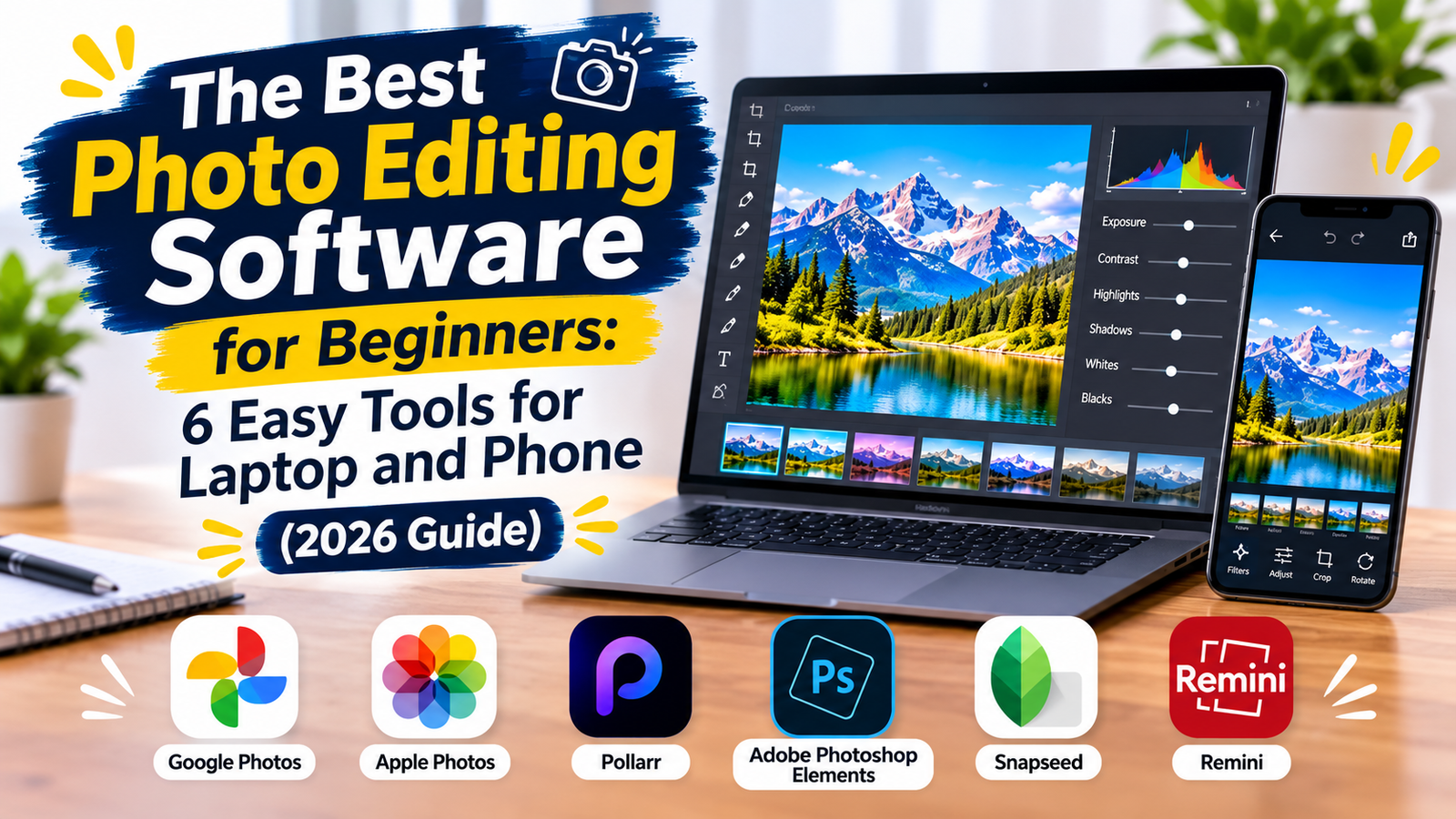
6 Easy and Most-Used Photo Editing Softwares for Laptop and Phone
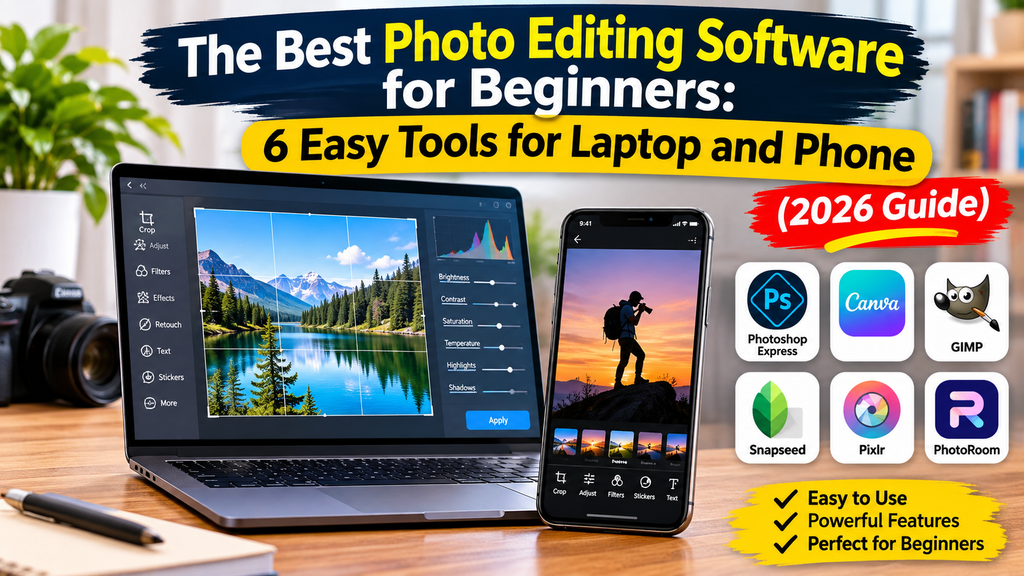
The criteria here are simple: free tier available or already included in your devices, verified by independent reviews, and genuinely approachable for someone who has never opened an editing app before.
1. Google Photos (Best Free All-Rounder for Phone and Web)
Platform: Android, iOS, Web
Google Photos is the path of least resistance. It’s likely already on your phone, backing up your camera roll. The editing tools are basic and suitable for beginners but effective crop, exposure, color and the AI features (Magic Eraser, Unblur) are the kind of fixes that use desktop or advanced softwares to do the perfect editing. PCMag rates it as an excellent option for editing and organizing on any platform, noting its AI tools and strong search .
Best for: Anyone who wants a good photo editing software without downloading anything new. If you post to social media and just need your photos to look clean, this is enough. It’s not a deep editor. If you want granular control or layer-based editing, you’ll outgrow it.
2. Apple Photos (Best for iPhone and Mac Users)
Platform: iOS, iPadOS, macOS
Like Google Photos, Apple Photos comes pre-installed in the Apple devices like Iphone, Mac, Ipads. The standard sliders cover exposure, color, and cropping, and newer iPhones support AI Clean Up for removing distractions. PCMag describes the interface as slick and praises its auto-corrections, noting that it supports plug-ins like Topaz Photo AI for noise reduction if you ever need more power.
Best for: Apple ecosystem users who want a best photo editor that syncs seamlessly across devices. If you take photos on your iPhone and occasionally edit on a Mac, this is the smoothest workflow available. Available on Apple-only. Windows and Android users need not apply.
3. Pollarr (Best for Mobile Editing with Desktop-Grade Controls)
Platform: iOS, Android, Web
Polarr sits somewhere between Snapseed and a desktop editor. It’s available on mobile, desktop, and web offering standard adjustments alongside more advanced tools like tone curve editing and LUT support. PCMag highlights its wealth of gradients, overlays, and retouching tools, noting that it’s a strong choice for effects and community features.
Best for: It has a free tier with in-app purchases, so you can test the waters before committing. If you like Snapseed’s hands-on feel but want more control over color and tone, Polarr is the next step up without jumping to a paid subscription
4. Adobe Photoshop Elements (Best Bridge from Beginner to Serious)
Platform: Windows, macOS
Photoshop Elements is the approachable version of Adobe’s industry standard. The key feature for beginners is Guided Edits, which walk you step-by-step through effects that would be intimidating in full Photoshop. PCMag specifically recommends it for building skills with a more Photoshop-like editing experience.
Best for: Users who want the feel of a professional picture editing program but need training wheels. If you suspect you’ll eventually want layers, masks, and precise selections, starting here means you won’t have to relearn everything later. It’s a one-time purchase, not free. And it’s desktop-only.
5. Snapseed (Best Free Mobile Editor for Hands-On Control)
Platform: iOS, Android
Snapseed is the mobile editor that feels like real editing software. Gesture-based controls (swipe to adjust exposure, pinch to zoom) make it intuitive, and the Healing tool removes unwanted objects more cleanly than many built-in alternatives. TechRadar’s reviewer calls it the app they keep coming back to because of “the granular control I have over every aspect of my photos” and the ability to stack changes without committing .
Best for: Phone photographers who want more control than Google Photos offers but aren’t ready for a desktop workflow. No account required, no ads. It’s only usable on mobiles. There’s no desktop version.
6. Remini (Best for Restoring Old or Blurry Photos)
Platform: Web, iOS, Android
Remini does one thing extremely well: it uses AI to sharpen faces and restore detail in old, faded, or blurry photos. You upload a photo, tap a button, and the AI does the magic . It’s primarily a mobile app, which makes it convenient for digitizing family albums. The free version limits how many enhancements you get per day, but for occasional personal use that’s usually enough.
Best for: It won’t handle object removal or creative edits. It’s a specialist tool but for the specific job of bringing a blurry childhood snapshot back to life, it’s hard to beat.
How to Choose Without Overwhelm
- Start with what you already have. Google Photos or Apple Photos cost nothing and cover most beginner needs.
- Match the tool to the device. Phone-only? Snapseed. Want desktop depth? Photoshop Elements. Social content with text and branding? Canva.
- Ignore pro features for now. Don’t know what a layer mask is? You don’t need it yet. The best beginner software is the one that doesn’t make you feel stupid.
- Free tiers are genuinely useful now. Weekly notes free tools have dramatically closed the gap between amateur and professional results for social content . Spend time learning, not save money.
Frequently Asked Questions
What is the best photo enhancing software for absolute beginners?
Google Photos or Apple Photos. They’re free, already installed on most devices, and handle basic corrections automatically. If you want more control, Snapseed is the next step up on mobile .
Is free photo editing software good enough for social media?
Yes. Free tools now include AI-powered object removal, background cleanup, and color correction that would have required paid software a few years ago. eWEEK’s assessment is blunt: the gap between amateur and professional results has narrowed dramatically .
Can I use the same software on laptop and phone?
Google Photos and Canva both sync across devices. Snapseed is mobile-only. Photoshop Elements is desktop-only. Apple Photos works across Apple devices only. Check compatibility before you invest time learning an interface .
Do I need to pay for a subscription to get good results?
No. Every tool listed here has a functional free version or comes pre-installed. ZDNET’s guidance is to “stick to a trial run or practice with free photo editing options first” before committing to a subscription . Upgrade only when you hit a specific limit, not because a marketing page told you to.
The Bottom Line
The best image editing software for beginners is the one you’ll actually open. That sounds obvious, but it’s the only criterion that matters. A powerful tool that intimidates you is worse than a simple tool you use.
Phone-only? Start with Snapseed or whatever came with your phone. Apple ecosystem? Apple Photos is genuinely good. Desktop curious? Photoshop Elements will teach you the fundamentals without punishing you. Social-first? Canva gets out of your way.
Skill grows with use. Start simple, stay consistent, and upgrade only when you hit a wall you can’t climb with what you have. The photo you meant to take is closer than you think.