TLDR (Too Long Didn’t Read):
- Discover why building your own PC is more cost-effective and customizable than buying pre-built systems in 2026
- Learn the essential components needed for beginner PC building and how to choose compatible parts
- Master the complete assembly process with our detailed step-by-step instructions from preparation to boot-up
- Understand crucial safety precautions, cable management techniques, and common mistakes to avoid
- Get expert troubleshooting tips to solve first-time boot issues and optimize your new custom PC
Ever wondered why tech enthusiasts choose to build their own computers instead of buying ready-made ones? Here’s a surprising fact: according to PCPartPicker’s 2024 Builder Survey, first-time PC builders save an average of 20-30% compared to purchasing equivalent pre-built systems, while gaining complete control over every component. In 2026, beginner PC building has become more accessible than ever, with user-friendly components, extensive online resources, and surprisingly straightforward assembly processes that anyone can master.
Whether you’re looking to create a powerful gaming rig, a content creation workstation, or a reliable home office machine, building your own PC offers unmatched customization and value. This comprehensive guide will walk you through everything you need to know about beginner PC building, from selecting compatible components to successfully booting your custom-built system for the first time. By the end of this article, you’ll have the confidence and knowledge to assemble your dream computer, even if you’ve never opened a PC case before.
Understanding Why You Should Build Your Own PC
Building your own PC might seem intimidating at first, but the benefits far outweigh the initial learning curve. When you tackle beginner PC building, you’re not just assembling hardwareyou’re investing in a valuable skill set that pays dividends for years to come.
Cost Savings and Value: Pre-built computers include markup costs for assembly, branding, and support services. By building your own, you eliminate these overhead expenses and allocate your budget directly to performance components. According to Tom’s Hardware’s 2025 analysis, DIY builders consistently achieve 15-35% better performance per dollar compared to equivalent pre-built systems. This means a $1,000 custom build can match or exceed the performance of a $1,300-$1,500 pre-built machine.
Complete Customization: Unlike off-the-shelf computers that force you into predetermined configurations, building your own PC lets you prioritize exactly what matters to your use case. Need exceptional graphics performance for gaming? Allocate more budget to your GPU. Focusing on video editing? Invest in additional RAM and faster storage. This level of customization simply isn’t available with most pre-built options.
Quality Component Selection: When you build yourself, you choose every single part. This means you can select reliable brands, avoid cheap components that manufacturers often hide in pre-builts, and ensure everything meets your quality standards. You’ll know exactly what’s inside your machineno mystery parts or proprietary components that make future upgrades difficult.
Learning Experience and Empowerment: Perhaps the most underrated benefit of beginner PC building is the knowledge you gain. Understanding how your computer works makes troubleshooting easier, upgrades simpler, and gives you confidence to maintain and optimize your system. You’ll no longer be at the mercy of repair shops for basic issues.
Essential Components for Beginner PC Building
Before diving into assembly, you need to understand what makes a computer work. Each component serves a specific purpose, and choosing compatible parts is crucial for a successful build.
Core Components You’ll Need
Central Processing Unit (CPU): The brain of your computer handles all calculations and processing tasks. In 2026, AMD’s Ryzen 7000/8000 series and Intel’s 14th/15th Gen processors dominate the market. For beginners, mid-range options like the AMD Ryzen 5 8600 or Intel Core i5-14400F offer excellent performance without breaking the bank. Expect to spend $180-$280 for a solid beginner CPU.
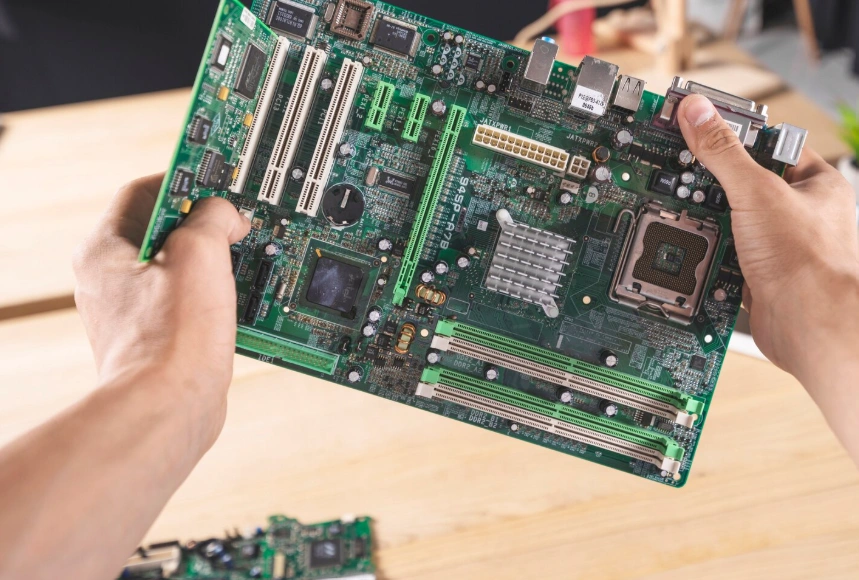
Motherboard: This main circuit board connects all your components together. Choose a motherboard compatible with your CPU socket typeAM5 for modern AMD processors or LGA1700/1851 for recent Intel chips. B650 chipset boards for AMD and B760 boards for Intel provide the best value for beginners, typically ranging from $120-$200.
Memory (RAM): Modern systems require at least 16GB of RAM for smooth multitasking and gaming. DDR5 has become the standard in 2026, with speeds of 5600MHz or higher recommended. Look for reputable brands like Corsair, G.Skill, or Kingston. A 16GB (2x8GB) DDR5 kit costs approximately $70-$100.
Graphics Card (GPU): For gaming or graphics-intensive work, your GPU is crucial. NVIDIA’s RTX 4000/5000 series and AMD’s RX 7000 series offer various performance tiers. Budget-conscious beginners might start with an RTX 4060 or RX 7600 ($280-$350), while those wanting higher performance can opt for RTX 4070 or RX 7800 XT models ($500-$600).
Storage: Modern PC building prioritizes NVMe SSDs for their incredible speed. A 1TB Gen4 NVMe drive serves as an excellent primary storage solution ($80-$120), with options to add secondary SATA SSDs or HDDs for additional capacity later.
Power Supply Unit (PSU): Don’t skimp hereyour PSU powers everything. Choose 80+ Bronze certified or better from reliable manufacturers like Corsair, EVGA, or Seasonic. A 650-750W unit handles most beginner builds comfortably ($80-$130). According to AnandTech’s PSU testing database, quality power supplies last 7-10 years with proper care.
PC Case: Your case houses everything and affects cooling and aesthetics. Beginner-friendly cases like the NZXT H5 Flow, Fractal Design Pop Air, or Corsair 4000D Airflow ($80-$120) offer excellent cable management, good airflow, and easy assembly features.
CPU Cooler: While many CPUs include basic stock coolers, aftermarket options provide better temperatures and quieter operation. Tower coolers from companies like Thermalright or DeepCool offer excellent value ($30-$50), while all-in-one liquid coolers provide premium cooling ($80-$150) for enthusiasts.
Component Compatibility Checklist
| Component | Compatibility Factor | What to Verify |
| CPU | Socket Type | Must match motherboard (AM5, LGA1700, etc.) |
| Motherboard | Form Factor | ATX, Micro-ATX, or Mini-ITX fits your case |
| RAM | Memory Type & Speed | DDR5 compatibility, supported speeds |
| GPU | Physical Size & Power | Fits case length, PSU has required connectors |
| PSU | Wattage & Efficiency | Sufficient power for all components + headroom |
| Case | Component Clearance | CPU cooler height, GPU length, PSU size |
Step-by-Step PC Assembly Process
Now comes the exciting partputting everything together. Take your time, follow these instructions carefully, and remember that beginner PC building is like adult LEGO: everything has a specific place and usually only fits one way.
Pre-Assembly Preparation
Before touching any components, prepare your workspace. Choose a large, clean, flat surface like a dining table. Avoid carpeted areas if possible, or use an anti-static mat. Keep your components in their anti-static bags until ready to install. Have a Phillips-head screwdriver readyit’s the only tool you’ll absolutely need, though magnetic-tip screwdrivers make life easier.
Ground yourself before handling components by touching a metal object or wearing an anti-static wristband. While modern components are more resistant to static damage than older hardware, this simple precaution prevents potential disasters.
Installing the CPU
Open your motherboard box and place the board on top of its box (which provides a safe, non-conductive surface). Locate the CPU socketit’ll be a large square area usually in the upper-center of the board.
For Intel motherboards, lift the retention arm and bracket. Align your CPU with the socket using the gold triangle on the CPU corner and corresponding indicator on the socket. Gently place the CPUit should sit flat without any pressure. Lower the bracket and retention arm until it clicks into place.
For AMD motherboards, lift the retention arm, align the CPU’s gold triangle with the socket’s triangle marker, and gently drop it in. The CPU should fall into place naturally. Lower the retention arm until it locks.
Critical Note: Never force the CPU. If it doesn’t sit naturally, you’ve likely misaligned it. Remove it and try again.
Installing RAM
Locate the RAM slots on your motherboard (typically to the right of the CPU socket). Open the retention clips on both ends of the slots. Most motherboards have four slots; for two RAM sticks, consult your motherboard manual for the correct slots (usually slots 2 and 4 for optimal dual-channel performance).
Align the notch in your RAM stick with the notch in the slot. Press down firmly and evenly on both ends until the retention clips snap into place automatically. The RAM should sit completely flush with no gap visible.
Installing the M.2 SSD
Show Image
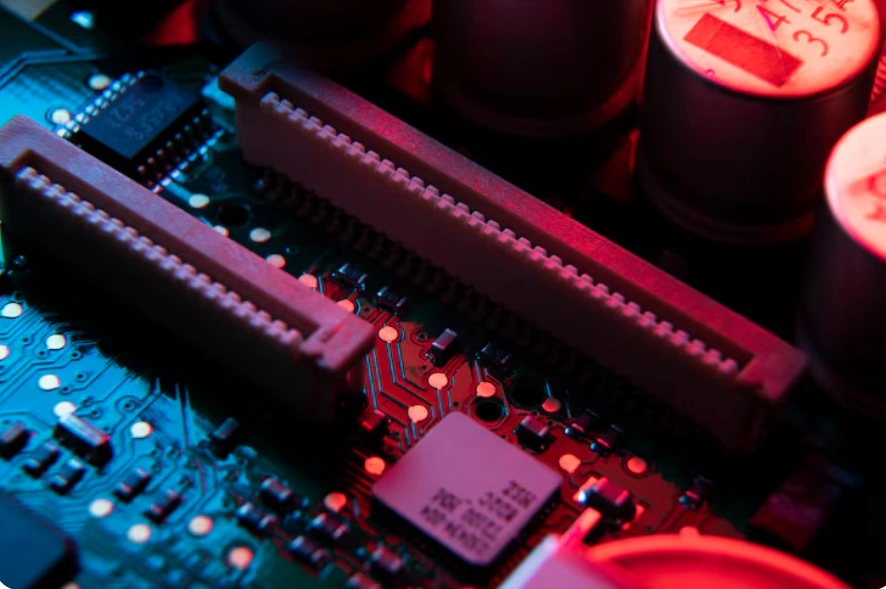
Most modern motherboards have multiple M.2 slots, often with pre-installed heatsinks. Remove the heatsink if present (usually held by small screws). The M.2 screw and standoff might already be installed in the slot.
Insert your M.2 drive at a 30-degree angle into the slot, then press down gently and secure with the mounting screw. Reattach the heatsink if your motherboard includes one. According to StorageReview’s thermal testing, heatsinks can reduce M.2 temperatures by 10-15°C under heavy load, improving longevity and preventing thermal throttling.
Installing the CPU Cooler
CPU cooler installation varies significantly by model. Carefully read your cooler’s instruction manual. Generally, you’ll install a backplate behind the motherboard, apply thermal paste to the CPU (if not pre-applied to the cooler), and secure the cooler using the manufacturer’s mounting mechanism.
For thermal paste application, use the “pea-sized dot” method: place a small dot (about the size of a rice grain) in the center of the CPU. The mounting pressure will spread it evenly. Don’t spread it manuallythis often creates air bubbles.
Preparing the Case and Installing the Motherboard
Remove both side panels from your case. Install the I/O shield (the metal plate that came with your motherboard) into the rectangular opening at the rear of the casepress firmly until all four corners click into place.
Modern cases typically have standoffs pre-installed for ATX motherboards. Verify standoff positions match your motherboard’s mounting holes. Carefully lower the motherboard into the case, aligning the rear I/O ports with the I/O shield opening. Secure the motherboard with screws (usually 6-9 mounting points). Don’t overtightensnug is sufficient.
Installing the Power Supply
Most modern cases position the PSU at the bottom, with the fan facing downward (if your case has ventilation holes) or to the side. Slide the PSU in from inside the case, align the screw holes, and secure with four screws.
Keep all PSU cables disconnected during installationyou’ll connect them after the PSU is mounted.
Installing the Graphics Card
Locate the PCIe x16 slot (the longest slot, usually the top one) on your motherboard. Remove the corresponding expansion slot covers from your case’s rear panelmost GPUs require two slots of space.
Open the PCIe slot’s retention clip. Align your graphics card with the slot and press down firmly and evenly until the retention clip clicks into place. Secure the GPU bracket to the case with screws.
Cable Management and Connections
This step separates a clean build from a cable mess. Modern cases offer cable routing holes and tie-down points behind the motherboard trayuse them.
Essential Power Connections:
- 24-pin ATX power connector to motherboard (largest connector)
- 8-pin (or 4+4 pin) CPU power connector near the CPU socket
- PCIe power cables to graphics card (6-pin, 8-pin, or both depending on GPU)
- SATA power to any SATA drives (if applicable)
Front Panel Connections:
- USB headers for case’s front USB ports
- HD Audio connector for headphone/microphone jacks
- Front panel connectors for power button, reset button, and LED indicators (these are tinyrefer to your motherboard manual for correct positioning)
Fan Connections:
- CPU cooler fan to CPU_FAN header
- Case fans to SYS_FAN headers or fan controller
Route cables through management holes, secure with zip ties or velcro straps, and aim for a clean appearance. Good cable management improves airflow and makes future upgrades easier.
First Boot and BIOS Setup
With everything connected, it’s time for the moment of truth. Connect your monitor to your graphics card’s output (not the motherboard), plug in your keyboard and mouse, and connect the power cable.
Switch on the PSU’s power switch (usually located on the back) and press your case’s power button. If everything is connected correctly, you should see lights, hear fans spinning, and get a display output.
First-Time BIOS Access: Immediately press Delete, F2, or F12 (depending on your motherboard manufacturer) to enter BIOS. Here you’ll verify all components are detected:
- CPU showing correct model and speed
- RAM displaying correct capacity and speed
- Storage drives detected
- Boot order configured (set USB or DVD first if installing Windows)
Enable XMP/EXPO profile for your RAM to run at its rated speed rather than default slower speeds. This simple setting can improve performance by 5-10% in many applications. Save settings and exit.
Common Beginner Mistakes and How to Avoid Them
Even experienced builders occasionally make mistakes. Here are the most common beginner PC building pitfalls:
Forgetting the I/O Shield: Install it before mounting the motherboardretrofitting is frustrating and sometimes impossible without disassembly.
RAM Not Fully Seated: RAM requires more force than beginners expect. Push firmly until both retention clips click automaticallyif they don’t, the RAM isn’t seated properly.
Incorrect Front Panel Connections: These tiny connectors frustrate everyone. Take your time, use good lighting, and consult your motherboard manual’s diagram. Incorrect power switch connection means your PC won’t turn on, but it won’t damage anything.
Insufficient PSU Connections: Every power cable must be connected. Missing the 8-pin CPU power connector is the most common oversightyour system won’t boot without it.
Thermal Paste Issues: Either too much (oozing over the edges) or too little (poor heat transfer). The pea-sized method prevents both problems. Never use old, dried-out thermal paste.
Poor Cable Management: While not affecting functionality, terrible cable management can restrict airflow and make future maintenance difficult. Spend an extra 20 minutes routing cables properly.
Troubleshooting Your First Boot
Not every build boots perfectly the first time. Don’t panicmost issues have simple solutions.
No Display/No Boot:
- Verify all power connections, especially the 24-pin ATX and 8-pin CPU power
- Ensure RAM is fully seated with retention clips engaged
- Check if monitor is connected to GPU, not motherboard
- Try booting with one RAM stick in different slots
- Reseat the graphics card
System Powers On But No Display:
- Clear CMOS by removing the motherboard battery for 30 seconds, then reinserting
- Check if your CPU requires a discrete graphics card (some models lack integrated graphics)
- Verify display cable is functional and correct input is selected on monitor
Fans Spin But System Shuts Down Immediately:
- Check CPU cooler is properly mounted and plugged into CPU_FAN header
- Verify PSU wattage is sufficient for your components
- Ensure no screws or metal objects are shorting the motherboard against the case
Random Freezing or Instability:
- Enable XMP/EXPO profiles in BIOS for RAM
- Update BIOS to latest version (check motherboard manufacturer’s website)
- Verify adequate coolingdownload HWMonitor to check temperatures
According to TechSpot’s builder survey data, 78% of first-time build issues stem from improper connections or unseated components rather than defective hardware. Methodically checking each connection resolves most problems.
Post-Build Optimization and Software Setup
Show Image
Once your system boots successfully, you’re not quite finished. Proper software setup ensures you get maximum performance from your beginner PC building achievement.
Operating System Installation: Create a Windows 11 installation USB using Microsoft’s Media Creation Tool on another computer. Boot from this USB, follow the installation prompts, and install Windows on your primary M.2 drive. Product keys are available from Microsoft directly or legitimate retailersavoid suspiciously cheap gray-market keys.
Driver Installation: Windows 11 automatically installs basic drivers, but you should manually install the latest versions:
- GPU drivers from NVIDIA or AMD’s official websites
- Motherboard chipset drivers from your motherboard manufacturer’s support page
- Any peripheral drivers for specialized keyboards, mice, or other devices
BIOS Updates: Check your motherboard manufacturer’s website for BIOS updates. Newer BIOS versions often improve stability, add features, and enhance compatibility. Follow the manufacturer’s update instructions carefullynever interrupt a BIOS update process.
Benchmarking and Stress Testing: Download tools like Cinebench (CPU testing), 3DMark (GPU testing), and Prime95 (stability testing) to verify your system performs as expected. Compare your scores to similar builds onlinesignificant discrepancies might indicate configuration issues.
Temperature Monitoring: Install HWMonitor or HWiNFO to track component temperatures. Idle CPU temperatures should sit between 30-45°C, with gaming/load temperatures between 60-80°C. GPU temperatures typically run slightly higher. Consistently high temperatures might indicate poor cooler installation or inadequate case airflow.
Fan Curves and Performance Tuning: Modern motherboards include software for fan control. Configure fan curves in BIOS or through manufacturer software (like MSI Center or ASUS AI Suite) to balance noise and cooling. Consider the 60/40 rule: case fans at 60% speed during normal use, ramping to 100% only when components exceed 75°C.
Expanding Your Knowledge and Future Upgrades
Your first beginner PC building project marks the beginning of a rewarding journey. The modular nature of PCs means you can continuously upgrade and improve your system.
Upgrade Path Planning: Start thinking about future improvements:
- Additional RAM (upgrading to 32GB for content creation)
- Storage expansion (adding a 2TB secondary drive)
- GPU upgrades every 3-4 years for gaming performance
- CPU upgrades when your motherboard’s socket becomes limiting
Join the Community: PC building communities offer invaluable support and knowledge sharing. Subreddits like r/buildapc, forums like Tom’s Hardware, and YouTube channels like Linus Tech Tips, Gamers Nexus, and JayzTwoCents provide ongoing education and inspiration.
Maintenance Best Practices: Keep your investment running smoothly:
- Clean dust filters every 2-3 months
- Deep clean inside your case every 6-12 months using compressed air
- Monitor component temperatures periodically
- Keep drivers and BIOS updated
- Replace thermal paste every 3-4 years for optimal CPU cooling
Cost-Effective Upgrading: Don’t fall into the trap of constant upgrading. Focus on bottleneck eliminationidentify which component limits your specific use case and upgrade strategically. A GPU upgrade delivers the most noticeable gaming performance improvement, while RAM and storage upgrades benefit content creators and multitaskers more significantly.
Conclusion
Congratulations on taking the first steps toward beginner PC building mastery! Throughout this comprehensive guide, we’ve covered everything from understanding why building your own PC offers superior value and customization, to selecting compatible components, assembling your system step-by-step, and optimizing performance post-build. The skills you’ve developed here extend far beyond simply assembling hardwareyou now understand how computers work at a fundamental level, empowering you to troubleshoot issues, perform upgrades, and make informed decisions about future technology purchases.
Building your first PC represents both a practical achievement and a valuable learning experience. The 20-30% cost savings compared to pre-built systems, combined with the complete control over component quality and configuration, makes DIY building an increasingly popular choice for gamers, content creators, and professionals alike. More importantly, you’ve gained confidence in working with technology and problem-solving skills that translate to countless real-world situations. Whether you built a budget-friendly workstation or a high-performance gaming rig, the knowledge you’ve acquired through this process will serve you for years to come.
At Etagicon, we’re passionate about empowering tech enthusiasts with the knowledge and confidence to take control of their technology. We believe that beginner PC building shouldn’t be intimidatingwith the right guidance, anyone can create a custom computer perfectly suited to their needs. If you found this guide helpful and want to continue expanding your tech knowledge, explore more blogs on our website covering everything from advanced overclocking techniques to smart home integration, gaming peripherals, and emerging technology trends. Your journey into the world of custom PC building has just begun, and we’re here to support every step of your evolution from beginner to expert builder.
Ready to start your build? Share your component list in the comments below, and our community will provide feedback and suggestions. Don’t forget to bookmark this guide for reference during your assembly process, and check back with Etagicon for updates as new components and best practices emerge throughout 2026!