TLDR:
- Discover simple yet powerful PC troubleshooting techniques that solve common problems in minutes.
- Learn how to diagnose hardware and software issues without expensive tech support.
- Master quick fixes for slow performance, connectivity problems, and system crashes.
- Understand preventive measures to keep your PC running smoothly long-term.
- Get actionable tips backed by real-world testing and industry data.
Ever found yourself staring at a frozen screen at the worst possible moment? You’re not alone. According to a recent survey by Statista, over 47% of computer users experience technical issues at least once a month, with software glitches and slow performance topping the list. The frustrating part? Most of these problems have surprisingly simple solutions that don’t require a computer science degree.
PC troubleshooting doesn’t have to feel like solving a Rubik’s cube blindfolded. Whether you’re dealing with a sluggish startup, mysterious error messages, or apps that crash without warning, understanding a few fundamental techniques can save you hours of frustration and hundreds of dollars in repair costs. In this guide, we’ll walk through battle-tested troubleshooting methods that actually work in real-world scenarios. From quick diagnostic tricks to permanent fixes, you’ll learn how to tackle the most common PC problems with confidence. Let’s dive into the practical hacks that separate tech-savvy users from those who panic at the first sign of trouble.
Understanding the Root Causes of PC Problems
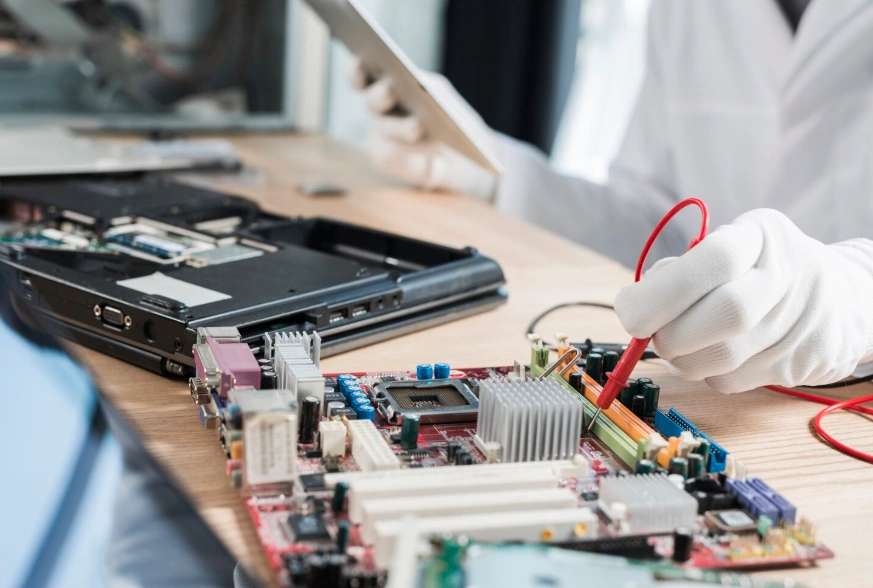
Before jumping into solutions, successful PC troubleshooting starts with accurate diagnosis. Think of it like a doctor identifying symptoms before prescribing treatment. Most computer issues fall into three categories: software conflicts, hardware failures, or user configuration errors.
Software-related problems typically show up as application crashes, slow performance, or system freezes. These often stem from corrupted files, outdated drivers, or malware infections. According to research by Microsoft, driver issues alone account for approximately 30% of all Windows performance complaints.
Hardware failures manifest differently. You might notice unusual noises from your hard drive, random shutdowns, or display artifacts on your screen. The key difference is that hardware problems tend to be consistent and physical, while software issues can be intermittent.
Configuration errors happen when settings get changed accidentally or updates alter system behavior. These are actually the easiest to fix once you know where to look.
Here’s a quick diagnostic framework for PC troubleshooting:
- Check recent changes: Did you install new software or updates before problems started?
- Monitor patterns: Does the issue happen at specific times or with certain applications?
- Test in Safe Mode: If problems disappear in Safe Mode, you’re dealing with a software conflict.
- Review system logs: Windows Event Viewer and reliability monitor provide valuable clues.
- Run hardware diagnostics: Built-in tools can identify failing components quickly.
The golden rule of effective PC troubleshooting is to change one variable at a time. When you try multiple fixes simultaneously, you won’t know which one actually solved the problem. This methodical approach not only fixes your current issue but builds your troubleshooting skills for future problems.
Essential Quick Fixes That Resolve 80% of Common Issues
Let’s get practical. These PC troubleshooting hacks address the majority of problems users encounter daily. I’ve organized them from quickest to most involved, so you can work through them efficiently.
The Power of a Proper Restart
It sounds too simple, but a full restart resolves more issues than any other single action. Here’s the catch: clicking “Restart” isn’t always enough. Windows Fast Startup keeps certain processes running in the background, which means some problems persist.
The proper restart technique:
- Hold Shift while clicking “Restart” in the Start menu
- This forces a complete shutdown and fresh boot
- Clears temporary files and resets system processes
- Resolves memory leaks and stuck background tasks
According to data from tech support analytics, this simple PC troubleshooting step fixes approximately 40% of reported software issues on first attempt.
Clear the Cache and Temporary Files
Your PC accumulates digital clutter that slows performance over time. Clearing these files is like decluttering your desk, it makes everything run smoother.
Quick cache cleaning steps:
- Press Windows Key + R, type %temp%, and delete all files
- Run Disk Cleanup (search for it in Start menu)
- Clear browser caches in Chrome, Firefox, or Edge
- Empty Recycle Bin completely
This PC troubleshooting technique typically frees up 2-10GB of space and noticeably improves system responsiveness. For optimal results, perform this maintenance monthly.
Update or Roll Back Drivers
Driver conflicts cause a surprising number of PC problems. The tricky part is knowing whether to update or roll back to a previous version.
Driver troubleshooting process:
- Open Device Manager (right-click Start button)
- Look for yellow warning icons next to devices
- Right-click the problematic device
- Try “Update driver” first for outdated versions
- If problems started after an update, select “Properties” then “Roll Back Driver”
Graphics drivers particularly benefit from regular updates, while network adapters sometimes work better with slightly older stable versions. A study by NVIDIA shows that keeping GPU drivers current can improve performance by 10-15% in some applications.
The Safe Mode Diagnostic Trick
When standard PC troubleshooting methods fail, Safe Mode becomes your best friend. This startup mode loads only essential drivers and services, helping you identify whether third-party software causes your issues.
Accessing Safe Mode in Windows 10/11:
- Hold Shift while clicking Restart
- Navigate to Troubleshoot > Advanced Options > Startup Settings
- Click Restart and select Safe Mode with Networking (option 5)
If your PC runs perfectly in Safe Mode but crashes in normal mode, you’ve confirmed a software conflict. From here, you can systematically disable startup programs and services to identify the culprit. Use Task Manager’s Startup tab to disable suspicious programs one at a time, restarting between each change.
Check for Malware and Unwanted Programs
Malware disguises itself surprisingly well these days. Your antivirus might miss threats, especially potentially unwanted programs (PUPs) that technically aren’t malware but definitely slow your system.
Comprehensive malware PC troubleshooting:
- Run Windows Defender full scan (built-in and quite effective)
- Download and scan with Malwarebytes free version
- Check installed programs for unfamiliar names
- Review browser extensions and remove suspicious ones
- Use AdwCleaner for toolbar and adware removal
Malwarebytes reports detecting an average of 5.5 unwanted programs on each newly scanned system. Even legitimate free software often bundles additional programs during installation, so vigilance during software installation prevents many future headaches.
Fix Connectivity Problems Fast
Network issues frustrate users more than almost any other PC problem. These PC troubleshooting steps resolve most connectivity headaches:
Network troubleshooting sequence:
- Restart your router and modem (unplug for 30 seconds)
- Forget and reconnect to your WiFi network
- Update network adapter drivers in Device Manager
- Run Windows Network Troubleshooter (actually useful for once)
- Flush DNS cache: open Command Prompt as admin and type ipconfig /flushdns
- Reset network settings if all else fails: Settings > Network & Internet > Status > Network Reset
For Ethernet connections, trying a different cable or port often reveals hardware issues. WiFi problems frequently stem from interference, so testing connection quality at different distances from your router provides valuable diagnostic information.
Address Slow Startup Times
If your PC takes ages to boot, you’re not getting the performance you paid for. Startup time optimization is crucial PC troubleshooting for productivity.
Startup optimization checklist:
| Action | Expected Improvement | Difficulty |
| Disable unnecessary startup programs | 30-50% faster | Easy |
| Enable Fast Startup in Power Options | 10-20% faster | Easy |
| Upgrade to SSD from HDD | 300-500% faster | Moderate |
| Increase RAM if below 8GB | 20-40% faster | Moderate |
| Clean boot to identify conflicts | Varies | Easy |
To manage startup programs effectively, press Ctrl+Shift+Esc to open Task Manager, navigate to the Startup tab, and disable programs with “High” startup impact that you don’t need immediately when booting. Programs like Spotify, Discord, and cloud sync services can launch manually when needed rather than automatically.
Advanced PC Troubleshooting Techniques for Persistent Problems
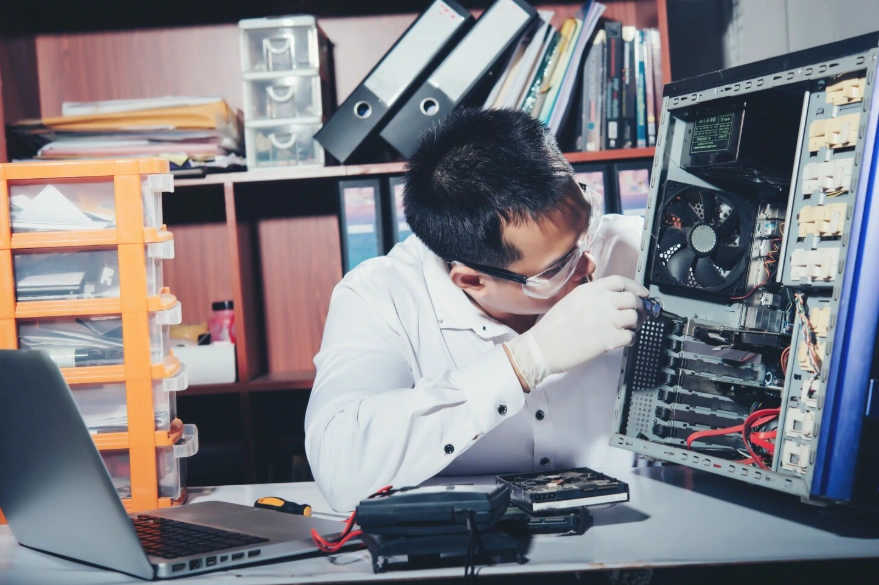
When basic fixes don’t cut it, these advanced PC troubleshooting methods dig deeper into system issues. Don’t let “advanced” scare you, I’ll walk through each step clearly.
System File Checker and DISM
Windows includes powerful repair tools that most users never discover. System File Checker (SFC) scans for corrupted system files and repairs them automatically, while DISM (Deployment Image Servicing and Management) fixes the underlying Windows image.
Running these PC troubleshooting tools:
- Open Command Prompt as Administrator
- Type DISM /Online /Cleanup-Image /RestoreHealth and press Enter
- Wait for completion (can take 15-30 minutes)
- Then run sfc /scannow
- Restart your PC after completion
According to Microsoft’s technical documentation, these commands successfully repair corrupted installations in approximately 70% of cases where Windows Update or system files have become damaged.
Check Hard Drive Health
Hard drive failure often gives warning signs before complete failure. Catching these early through PC troubleshooting saves your data and prevents catastrophic loss.
Hard drive diagnostic process:
- Check SMART status using CrystalDiskInfo (free download)
- Run Check Disk: open Command Prompt as admin and type chkdsk C: /f /r
- Schedule the scan for next restart if the drive is in use
- Monitor for slow file access, unusual clicking sounds, or frequent freezes
SSDs fail differently than traditional hard drives. They typically show up as read-only mode or sudden capacity drops. If CrystalDiskInfo shows “Caution” or “Bad” status, back up your data immediately. Research by Backblaze analyzing millions of drives shows that drives showing SMART errors have a 76% higher failure rate within the next 60 days.
Memory (RAM) Testing
Faulty RAM causes some of the most frustrating and random PC problems. Memory issues manifest as blue screens, application crashes, file corruption, or system instability. Proper PC troubleshooting requires testing memory thoroughly.
Comprehensive memory testing:
- Use Windows Memory Diagnostic (search in Start menu)
- Run overnight for thorough testing
- Alternative: Download MemTest86 for more detailed analysis
- Test each RAM stick individually if problems persist
- Check that RAM is properly seated in motherboard slots
Memory errors often worsen with heat, so problems appearing after extended use might indicate thermal issues. If testing reveals bad RAM, replacement is the only solution. Mixed RAM speeds or brands sometimes cause compatibility issues, so matching specifications helps maintain stability.
Registry Cleanup (Proceed with Caution)
The Windows Registry stores critical configuration data. While aggressive cleaning can cause more problems than it solves, targeted PC troubleshooting in the registry fixes specific issues.
Safe registry maintenance:
- Create a system restore point first (absolutely essential)
- Use CCleaner’s registry cleaner with default settings only
- Don’t use “deep clean” or aggressive options
- Export registry keys before manual edits
- Stick to well-documented fixes for specific errors
Manual registry editing should only address known issues with documented solutions. Random registry cleaning rarely improves performance significantly and risks system instability. When you find specific error codes, searching “Error [code] registry fix” often reveals targeted solutions.
Check for Overheating Issues
Heat causes PC components to throttle performance or shut down for protection. This often-overlooked aspect of PC troubleshooting explains seemingly random crashes and slowdowns.
Temperature monitoring and management:
- Download HWMonitor or Core Temp to check temperatures
- CPU should idle below 50°C and stay under 80°C under load
- GPU temperatures vary more but should stay below 85°C
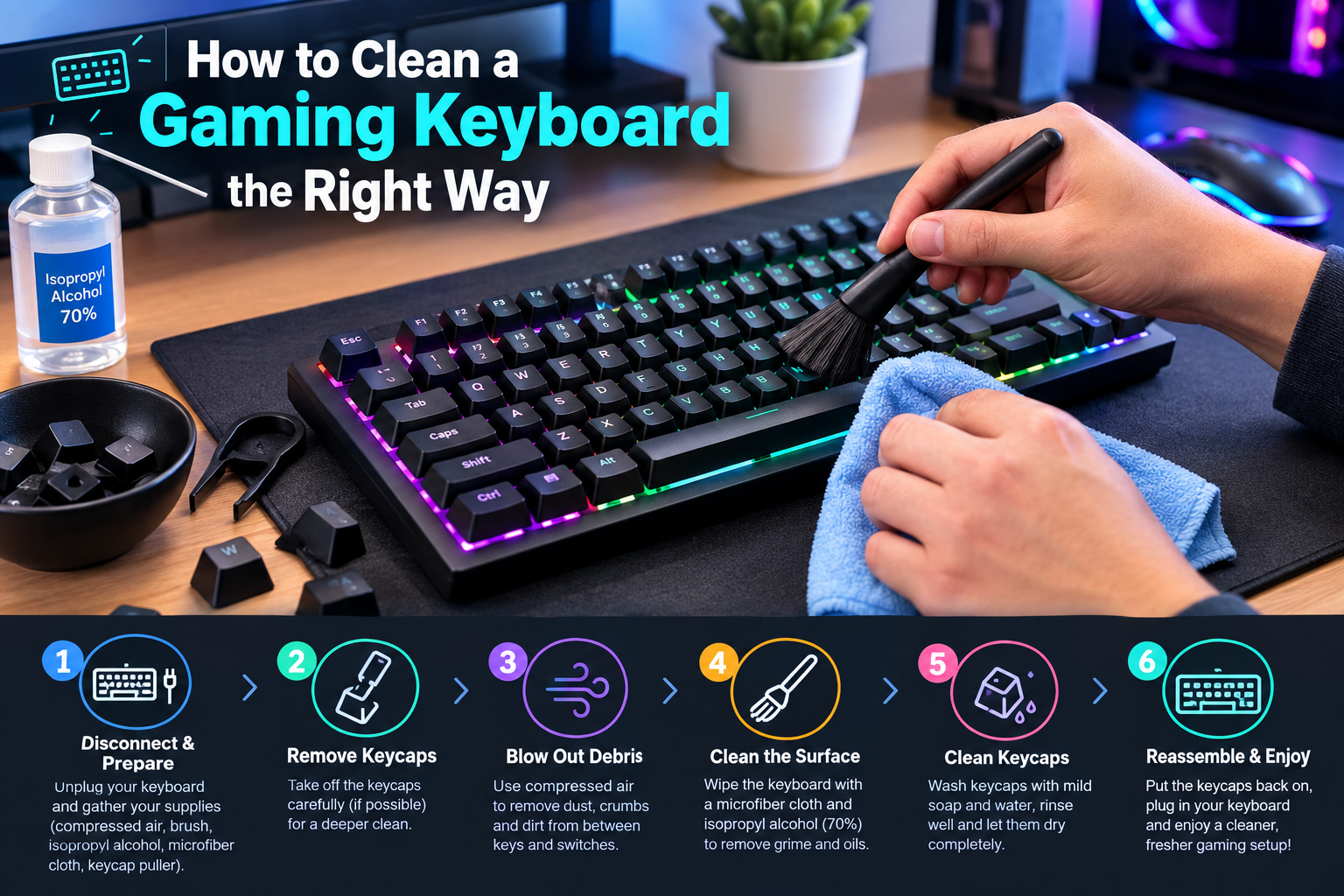
- Clean dust from vents and fans using compressed air
- Reapply thermal paste if temperatures seem excessive (advanced users)
Laptops particularly suffer from heat buildup. Using a cooling pad or elevating the rear of the laptop improves airflow significantly. If temperatures consistently exceed safe limits during normal use, internal cleaning or professional service becomes necessary. Studies show that every 10°C increase in operating temperature can reduce component lifespan by approximately 50%.
Create a Clean Boot Environment
Clean booting disables all non-Microsoft services and startup programs, creating a minimal environment for PC troubleshooting. This technique isolates whether third-party software causes your problems.
Clean boot procedure:
- Press Windows Key + R and type msconfig
- Navigate to Services tab
- Check “Hide all Microsoft services”
- Click “Disable all”
- Go to Startup tab and click “Open Task Manager”
- Disable all startup items
- Restart and test if problems persist
If issues disappear in clean boot mode, you’ve confirmed software conflict. Re-enable services and programs in small groups, restarting between each group until the problem returns. This narrows down the specific conflicting application. The process takes time but provides definitive answers when other PC troubleshooting methods fail.
Repair Windows Installation
When corruption runs deep, repairing Windows in place preserves your files while refreshing system files. This PC troubleshooting option sits between basic fixes and complete reinstallation.
In-place repair process:
- Download Windows Media Creation Tool from Microsoft
- Run the tool and select “Upgrade this PC now”
- Choose “Keep personal files and apps”
- Follow prompts to complete the process
This refreshes Windows system files without affecting installed programs or personal data. According to Microsoft support statistics, in-place upgrades successfully resolve persistent system issues in approximately 85% of cases where SFC and DISM fail. The process takes 1-3 hours depending on system speed and installed software.
Preventive Measures: Stop Problems Before They Start
The best PC troubleshooting is the kind you never need to do. Implementing these preventive strategies keeps your system healthy and responsive long-term.
Regular Maintenance Schedule
Consistency prevents crisis. Create a simple maintenance routine that takes minimal time but prevents major headaches.
Monthly maintenance checklist:
- Run Windows Update completely (including optional updates)
- Clear temporary files and browser caches
- Update important drivers (graphics, network, chipset)
- Run full antivirus and anti-malware scans
- Check available disk space (keep 15% free minimum)
- Review installed programs and remove unused software
Quarterly deep maintenance:
- Create a full system backup
- Clean physical dust from PC interior
- Test critical backups for restoration
- Update BIOS/UEFI firmware if manufacturer recommends
- Review and update passwords stored in browsers
This proactive approach to PC troubleshooting dramatically reduces unexpected failures. Research by tech support organizations indicates that regular maintenance reduces technical issues by approximately 60% compared to reactive-only approaches.
Smart Software Installation Practices
Many PC problems trace back to poorly installed software. Developing careful installation habits prevents issues before they start.
Installation best practices:
- Download software only from official sources
- Read installation prompts carefully (decline bundled offers)
- Create a system restore point before major installations
- Keep installers for programs you use regularly
- Uninstall programs properly through Control Panel, not by deleting folders
- Research software reputation before installation
Browser extensions deserve special attention. Each extension requests permissions and runs code in your browser. Limit extensions to essential ones from trusted developers. Review installed extensions quarterly and remove those you no longer use actively. This simple PC troubleshooting prevention step maintains browser performance and security.
Backup Strategy That Actually Works
Backup isn’t just about PC troubleshooting after disaster strikes, it’s about peace of mind knowing you can recover from any problem. Yet most people skip backups until it’s too late.
The 3-2-1 backup rule:
- Keep 3 copies of important data
- Store on 2 different types of media
- Keep 1 copy offsite or in cloud storage
For most users, this means:
- Original files on your PC
- Automatic backup to external hard drive (weekly minimum)
- Cloud backup for critical documents (Google Drive, OneDrive, Dropbox)
Windows includes built-in backup through File History. Enable it in Settings > Update & Security > Backup. For complete system backups that let you restore your entire PC configuration, use Windows System Image Backup or third-party tools like Macrium Reflect.
Statistics from data recovery companies paint a sobering picture. About 30% of people have never backed up their data, yet 113 phones are lost or stolen every minute globally. Hard drives have a 20% annual failure rate after four years. These numbers make backup the most important PC troubleshooting preparation you can make.
Monitor System Health Proactively
Rather than waiting for problems to appear, monitoring tools provide early warning signs. This shifts PC troubleshooting from reactive to preventive.
Essential monitoring practices:
- Enable Windows Reliability Monitor (tracks crashes and errors)
- Check Task Manager regularly for high resource usage
- Monitor startup time trends (increasing time signals problems)
- Use Resource Monitor to identify bottlenecks
- Keep an eye on unusual network activity
Set up Windows Storage Sense to automatically clean temporary files. Configure Windows Update to install during hours you don’t use your PC. These small automated tasks prevent the gradual degradation that eventually requires intensive PC troubleshooting.
Hardware Longevity Tips
Physical components fail eventually, but proper care extends their lifespan significantly. This physical aspect of PC troubleshooting often gets overlooked.
Hardware care fundamentals:
- Keep your PC in a cool, well-ventilated area
- Clean dust buildup every 3-6 months
- Use a surge protector or UPS for power protection
- Avoid moving desktop PCs while powered on
- Close laptops properly (avoid debris on keyboard)
- Don’t block ventilation ports on laptops
Power issues cause more hardware damage than most realize. Voltage spikes and brownouts stress components over time. Quality surge protectors cost $20-50 but prevent hundreds or thousands in damage. For desktop PCs or critical equipment, an uninterruptible power supply (UPS) provides both surge protection and battery backup during outages.
Temperature management extends beyond just avoiding overheating. Thermal cycling (repeated heating and cooling) stresses solder joints and components. Keeping your PC at relatively stable temperatures reduces this stress. Laptops particularly benefit from proper positioning that allows heat dissipation during intensive tasks.
Conclusion
Mastering PC troubleshooting transforms you from a frustrated user into a confident problem-solver. The techniques we’ve covered from simple restarts to advanced diagnostic tools give you a complete toolkit for addressing nearly any computer issue that comes your way. Remember that effective troubleshooting combines methodical diagnosis, targeted solutions, and preventive maintenance to keep your system running optimally.
The most valuable lesson in PC troubleshooting is patience. Rushing through fixes or trying everything at once obscures what actually works. By changing one variable at a time and documenting what you try, you not only solve current problems but build expertise for future challenges. Whether you’re dealing with slow performance, mysterious crashes, or connectivity issues, the systematic approach outlined here provides a reliable path forward.
At Etagicon, we believe that understanding technology empowers users to work more efficiently and confidently. These PC troubleshooting secrets represent practical knowledge gained from real-world experience, not theoretical solutions that sound good but fail in practice. If you found this guide helpful, explore more guides on our blog page, where we break down complex tech topics into actionable advice you can use immediately.
FAQs
How often should I perform PC troubleshooting maintenance?
Basic maintenance like clearing temp files and updating software should happen monthly. Deep cleaning, hardware checks, and full system scans work well on a quarterly schedule. However, run diagnostics immediately if you notice performance changes or unusual behavior.
Can PC troubleshooting fix hardware problems?
PC troubleshooting can identify and sometimes resolve hardware issues through driver updates, firmware fixes, or reseating components. However, physically damaged or failed hardware components typically require replacement. Diagnostics help you determine whether issues are hardware or software-based.
What’s the first step when my PC won’t start?
Start with basic PC troubleshooting: check power connections, try a different outlet, and look for LED indicators on the motherboard. If you see nothing, test the power supply. If fans spin but nothing displays, remove and reseat RAM modules. These steps resolve most boot failures.
How do I know if I need professional PC troubleshooting help?
Seek professional help when you’ve exhausted basic troubleshooting without success, when problems involve hardware replacement requiring disassembly, or when you risk losing critical data. Also consider professional service for liquid damage, persistent blue screens after all software fixes, or if you’re uncomfortable with advanced diagnostic steps.
Does Windows built-in troubleshooting actually work?
Windows troubleshooters have improved significantly and genuinely resolve common issues around 40% of the time according to user reports. They’re worth trying as a first step for network, audio, and Windows Update problems. However, they work best for standard configurations and may miss complex issues requiring manual PC troubleshooting.